Snowbird Tech Checklist: Back in Florida in 10 Minutes
Back in Florida for winter? Restart the modem first, then the router, run updates, re-sign in to the TV, re-pair the printer and check scam settings.
- Author
- By Master AI Labs
- Published
- Reading time
- 5 min read
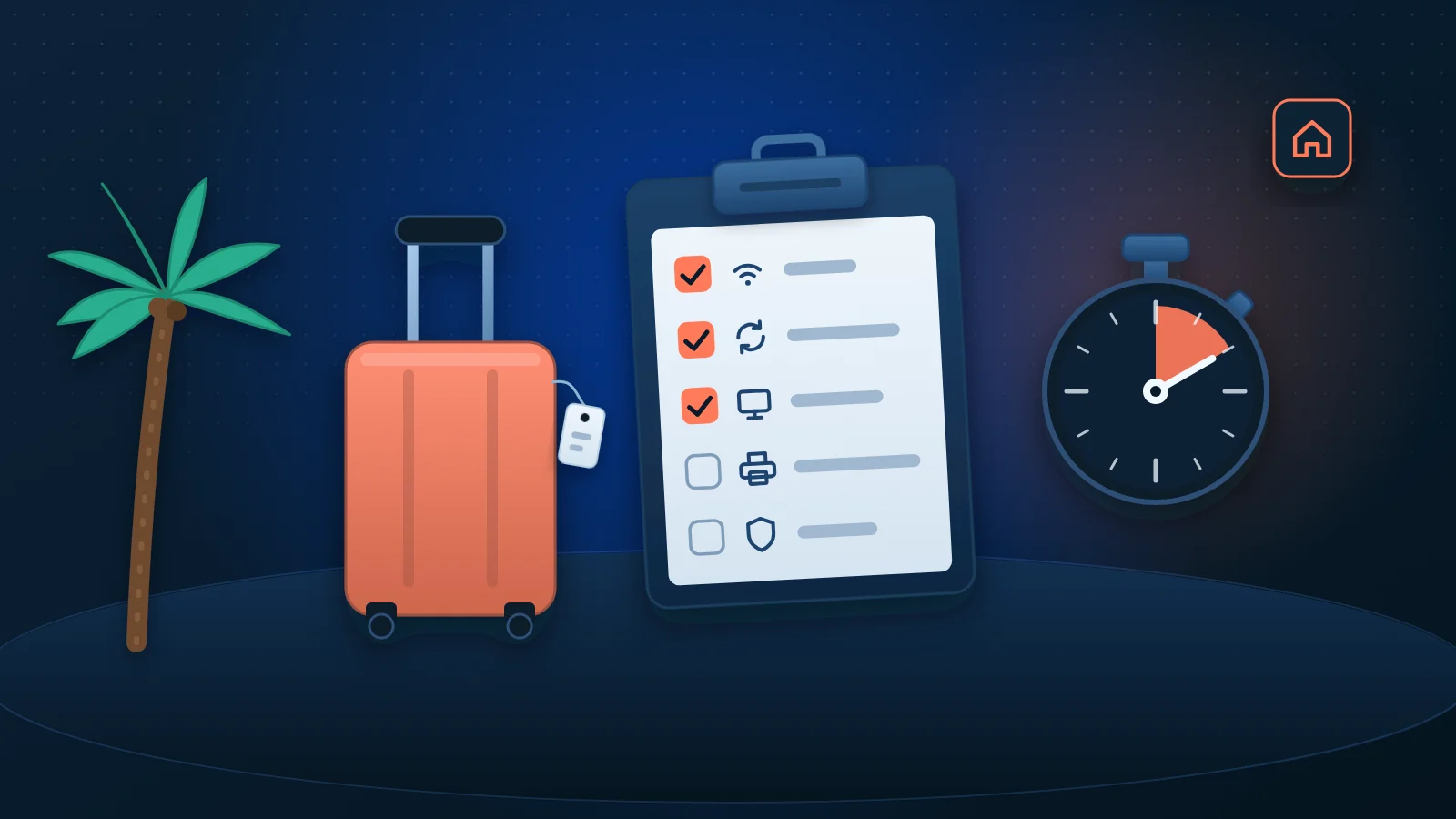
Back in Florida for the winter? Most homes need about 10 minutes of tech care before everything works like normal. Restart the modem first and the router second. Then run updates, sign back in to the TV, reconnect the printer, and check your scam settings.
Here is why it matters. Your devices sat unused for months, so updates piled up and sign-ins expired. If you paused your internet service, the modem may also need a fresh start. Below is the order we use in homes around Palm Bay, Melbourne and the rest of the Space Coast.
What order should I restart the modem and router?
Start with the box your internet comes into. The modem is the box connected to the cable or fiber line. The router is the box that makes your Wi-Fi. Some homes have one box that does both.
- Take a photo first. Use your phone to snap the back of each box before you touch a cable. If a plug comes loose, the photo shows where it goes.
- Unplug both boxes. Pull the power cable, not the internet cable.
- Wait one minute. Xfinity’s guide to restarting your gateway says to unplug the power cable, wait one minute and plug it back in.
- Plug in the modem first. Wait until its lights stop blinking and stay steady. This can take a few minutes.
- Then plug in the router. Give it a couple of minutes to bring the Wi-Fi back.
Do not press the small reset hole on the back. On most equipment, that erases your Wi-Fi name and password. Also know that a restart cuts home phone service from your internet provider for a few minutes. The same Xfinity gateway restart page warns that this includes 911 calls until the box is back online.
Which updates should I run first?
Run updates on your home Wi-Fi, one device at a time. If every device downloads at once, they all go slowly. We start with phones, then computers, then the TV and printer.
iPhone or iPad. Apple’s page on how to update your iPhone or iPad says to back up first, plug in to power and join Wi-Fi. Then go to Settings, General, Software Update and tap Download and Install.
Mac. Apple’s macOS update page says to open System Settings, General, Software Update. Back up first. Don’t close the lid or let it sleep, and expect a few restarts.
Windows 11. Microsoft’s Install Windows Updates page says to select Start, Settings, Windows Update, then Check for Windows updates. Choose Download & install, and restart if asked. Check again after the restart, since one update often unlocks the next.
If your computer still runs Windows 10, take note. The same Microsoft page says Windows 10 support ended on October 14, 2025. That computer is worth a closer look before you use it for banking.
How do I get the TV and printer back online?
Smart TV. Update the TV itself first. Look in its Settings menu for Support, System or Software Update, since the name changes by brand. Then open each streaming app. Many will ask you to sign in again after a long break or when they see you in a new home.
Keep your passwords handy before you sit down. Many apps show a code on the TV that you enter on your phone. Type the app’s web address yourself instead of tapping a link in a text message. If an app says you have too many devices, sign out old ones from your account page.
Printer. If your router and Wi-Fi password did not change, just turn the printer off and on after the router is fully up. If you got a new router or new password, the printer will not know it. Use the wireless setup option on the printer’s screen, pick your network and enter the password.
Next, remove the printer from your computer and add it again. That clears out the old connection. Print a test page. If the colors look streaky, run the cleaning cycle from the printer’s menu, because ink can dry out over a long summer.
What scam settings should I check?
Scammers like to target people who just got home and are fixing things. The FTC page on how to spot and avoid tech support scams is clear about the signs. Real security pop-ups never ask you to call a phone number. Real tech companies will not call, email or text to say your computer has a problem.
The FTC also says scammers ask for remote access, which lets them control your computer from far away. They often want payment in gift cards, wire transfers, crypto or payment apps. Here is a short list to check while you are home:
- Recovery info. Make sure your email and bank accounts have your current phone number and a backup email.
- Two-step sign-in. Turn it on for email and banking. It sends a code to your phone when someone signs in.
- Bank alerts. Turn on text or email alerts for new charges.
- Remote access apps. Remove any remote access app you did not install yourself.
- Reporting. If a scammer reaches you, the FTC says to report it at ReportFraud.ftc.gov.
Should I pause my internet while I’m up north?
Many providers offer a seasonal hold that pauses service while you are away. The terms can change, though. The Tampa Bay Times reported that Spectrum raised the cost for many Florida seasonal residents turning off service.
Before you leave in spring, ask your provider for these answers in writing:
- What the hold costs each month.
- The start and end dates, and whether they can be changed online.
- Whether any internet stays on for cameras, a thermostat or a security system.
- Whether you keep your equipment and your email address.
Set a phone reminder to end the hold a few days before you fly back. That way the restart steps above work on the first try.
When is it time to get help?
Some problems are bigger than a 10-minute checkup. Get help if the modem lights never go steady and your provider says the line is fine. The same goes if a stranger already got remote access to your computer, or if you have a long list of devices to set up.
Weak Wi-Fi in a back bedroom is another common one in our area. Our post on fixing Wi-Fi dead spots in a Florida block home explains why concrete walls block the signal. If you would rather have someone handle the whole list in one visit, see our in-home tech support service for Palm Bay, Melbourne, West Melbourne, Malabar and the rest of Brevard County.
Ask for a written quote
Tell us what is on your list: the modem, the TV, the printer, a slow computer, or all of it. Master AI Labs will send you a plain-English written quote and reply within one business day, in English or Spanish. Ask for a written quote
Questions people ask
Should I restart the modem or the router first?
Restart the modem first. Plug it in, wait until its lights are steady, and only then plug in the router. If the router starts first, it may not find the internet and you will have to restart it again.
Is it safe to press the reset button on my router?
Usually no. On most equipment the small reset hole erases your Wi-Fi name, password and settings. To restart, unplug the power cable, wait one minute, and plug it back in.
Why does my printer say it is offline after I come back?
The printer often loses its spot on the network after months off or after a router change. Turn it off and on after the router is fully up. If that doesn't work, run the wireless setup on the printer's screen, then remove and re-add the printer on your computer.
Do I need to turn off my internet service when I go north for the summer?
You don't have to, but many providers offer a seasonal hold. Before you sign up, get the cost, the start and end dates, and what keeps working in writing. Then set a reminder to end the hold before you fly back.
Someone called saying my computer has a virus. What should I do?
Hang up. The FTC says real tech companies won't call, email or text you to say your computer has a problem. Never give a stranger remote access, and report the call at ReportFraud.ftc.gov.
Sources
Every number in this post comes from one of these pages or from our own count, with the method stated in the post.
- Tampa Bay Times: Spectrum raises cost for many Florida seasonal residents turning off service (date not shown) (www.tampabay.com/news/business/personalfinance/spectrum-hikes-cost-for-many-florida-seasonal-residents-turning-off-service/2317328/)
- Xfinity Support: How to restart your Xfinity Gateway (date not shown) (www.xfinity.com/support/internet/power-cycling-your-modem/)
- Microsoft Support: Install Windows Updates (date not shown) (support.microsoft.com/help/14162)
- Apple Support: Update your iPhone or iPad (2026-09-15) (support.apple.com/en-us/118575)
- Apple Support: Update macOS on Mac (2026-09-14) (support.apple.com/en-us/108382)
- FTC Consumer Advice: How To Spot, Avoid, and Report Tech Support Scams (September 2025) (consumer.ftc.gov/articles/how-spot-avoid-and-report-tech-support-scams)